 Tori
How to use
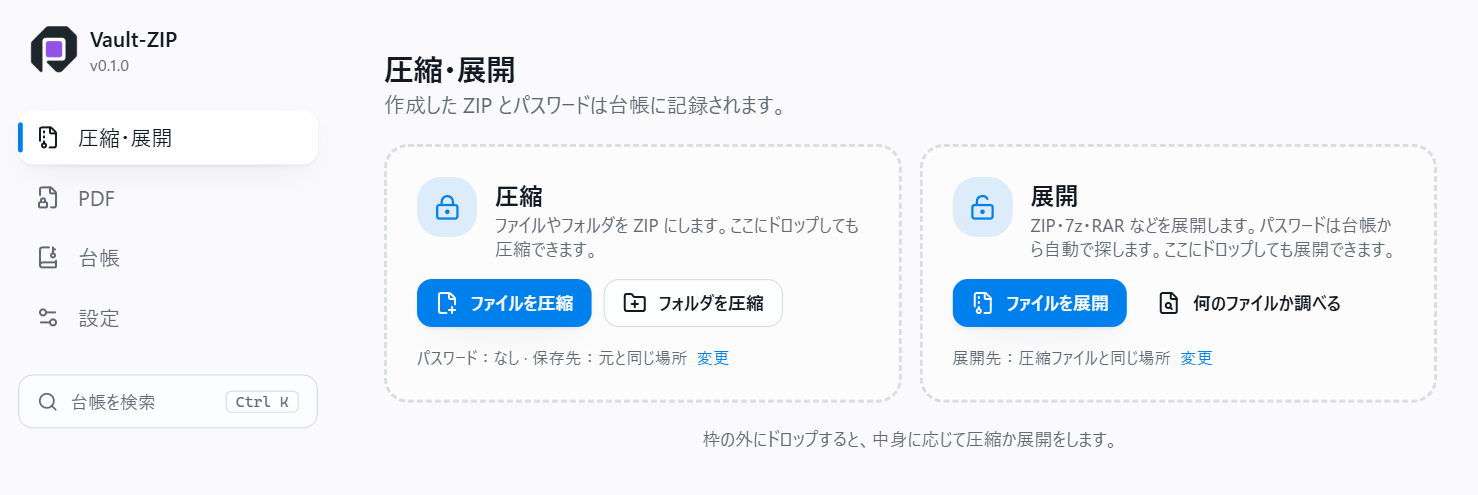
The common tasks, step by step. The app's screens are in Japanese for now.
Make a ZIP
- Drag files or folders onto the Vault-ZIP window, or right-click them in File Explorer and choose "Vault-ZIPで圧縮" (compress).
- Choose how to set the password: generate a new one, use one you set up before, type one each time, or none (the default is in the settings).
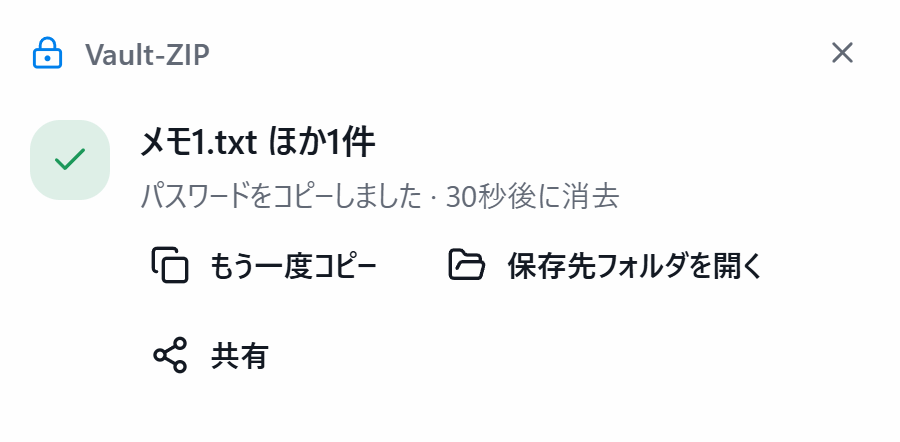
- Press compress. The ZIP is written and its password is recorded in the ledger.
To make one ZIP per item, use "個別に圧縮" (compress each).
Open a ZIP (extract)
- Drag the archive onto the window, or right-click it and choose "Vault-ZIPで展開" (extract).
- ZIP files made by Vault-ZIP open with the ledger's password. For other archives, type the password.
- If a file with the same name already exists, the new file gets " (2)" added by default (this is a setting).
Look up a password (the ledger)
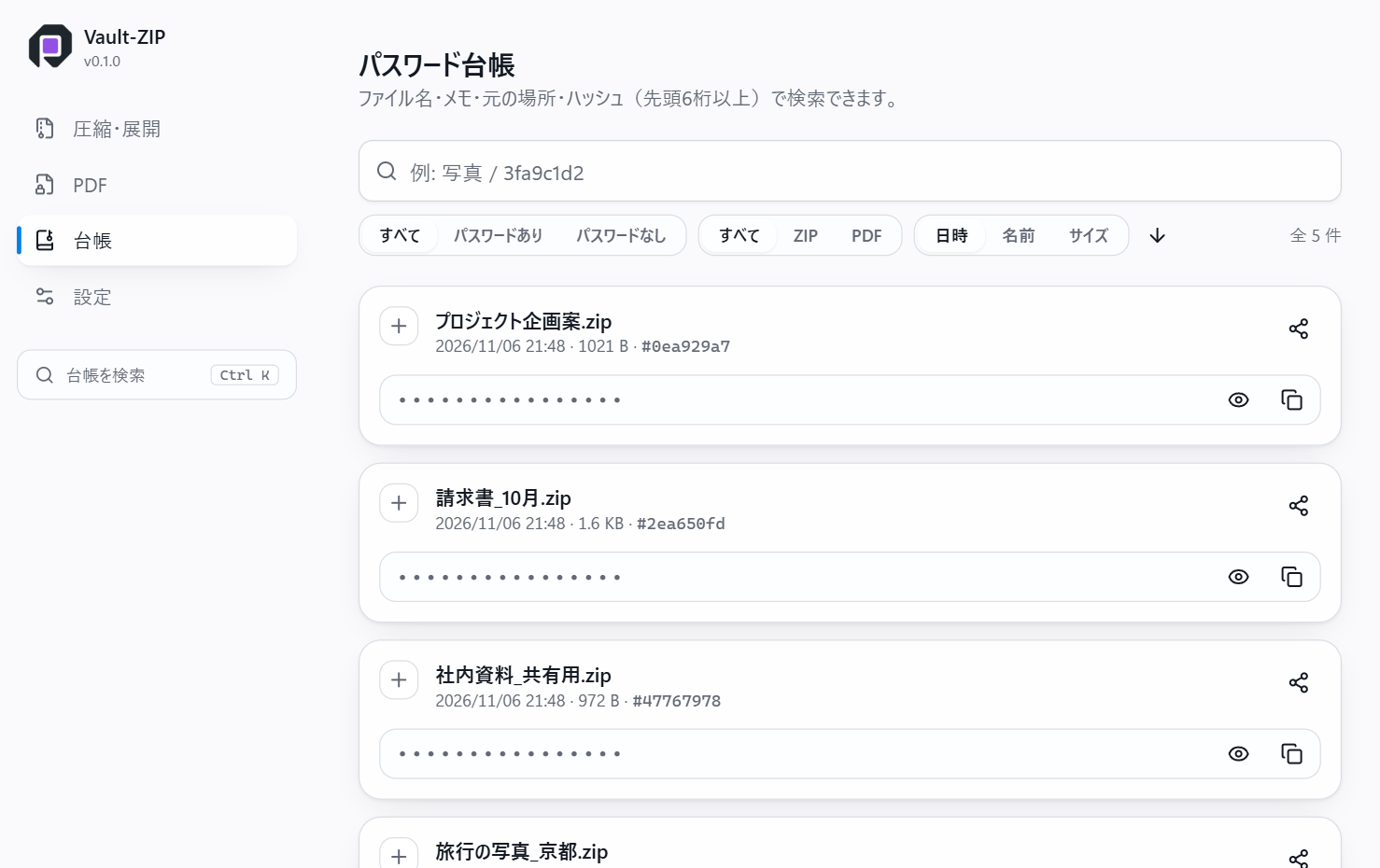
The ledger lists the ZIP files you made; search by name or date. You may be asked to confirm it is you before a password is shown or copied. A copied password is cleared from the clipboard after a while.
Keep the ledger safe
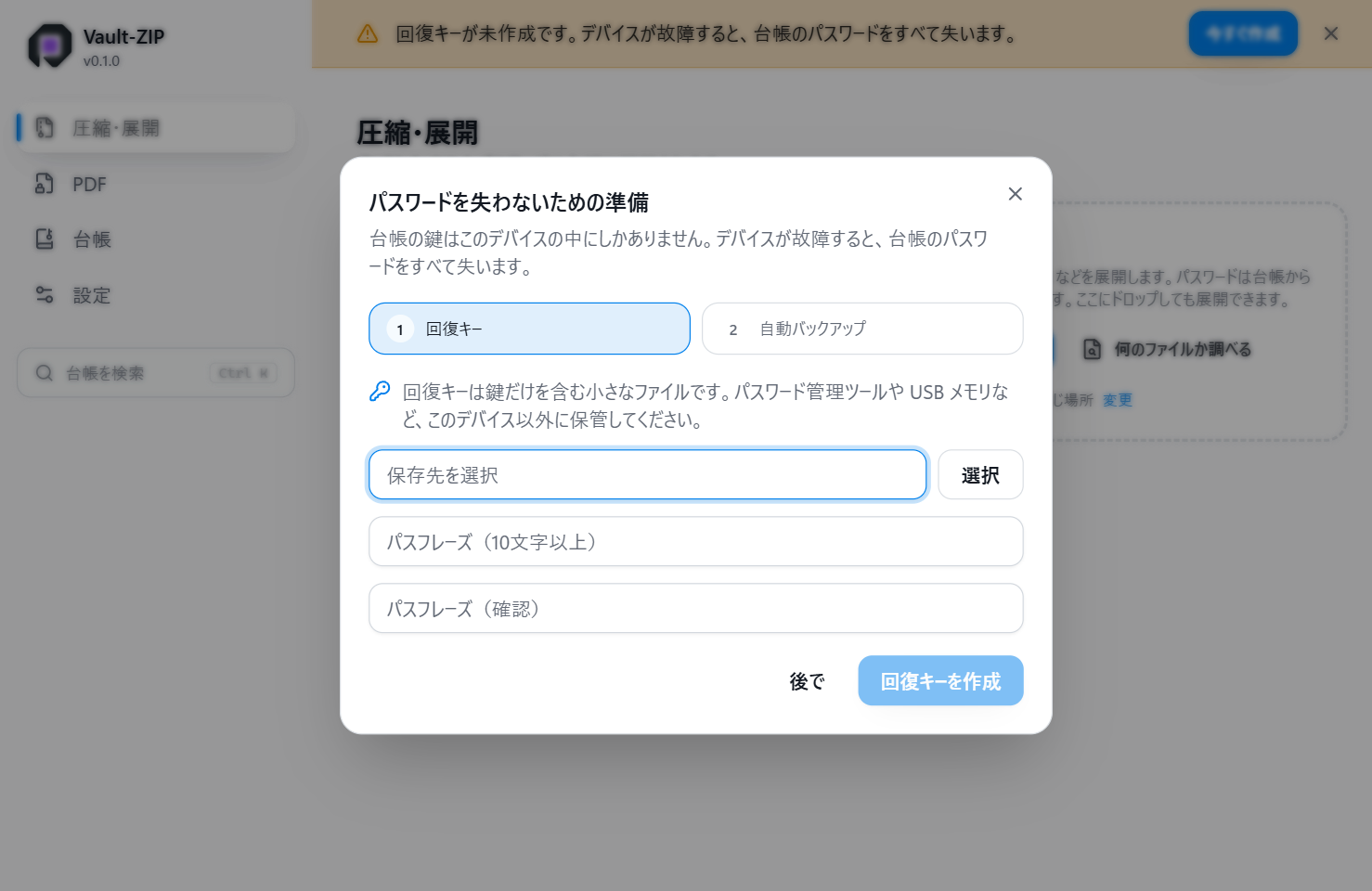
In the settings, make a recovery key and choose a folder for automatic backups. On a new PC, import a backup.
Add a password to a PDF
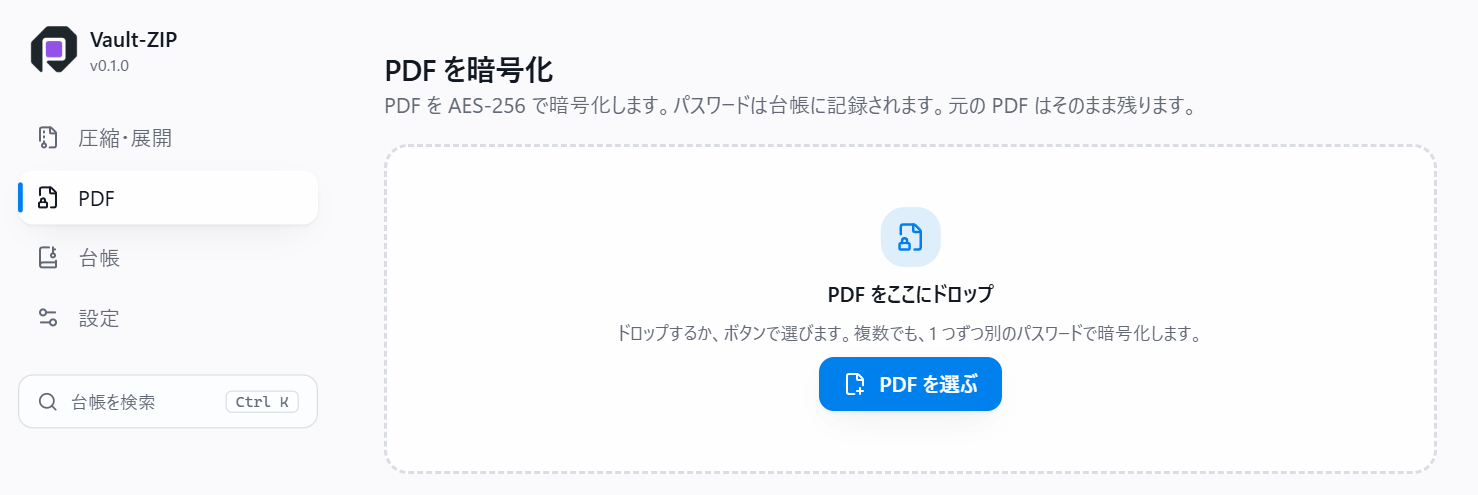
Drag a PDF onto the window, or right-click it and choose "Vault-ZIPでPDFを暗号化". The password is recorded in the ledger.
What is this file?
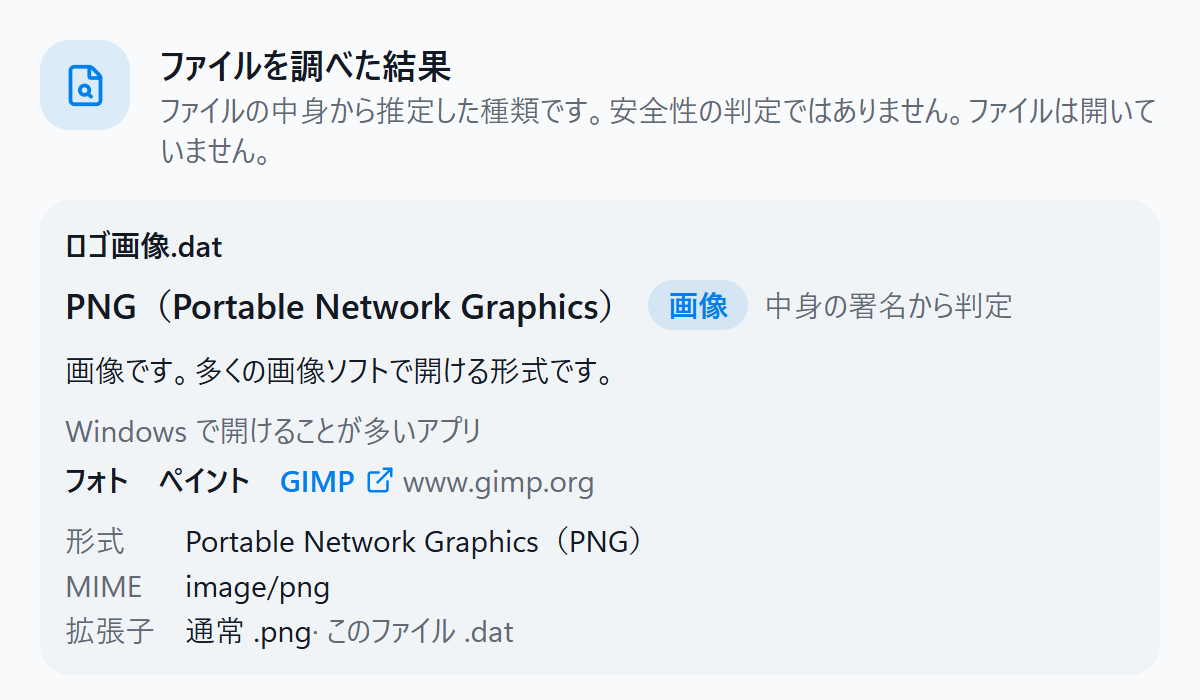
Right-click a file and choose "Vault-ZIPで何のファイルか調べる". A small window shows the type guessed from the content and which apps usually open it. It is not a safety verdict.
Command line
vault-zip-cli.exe is in the install folder. Passwords are never written on the command line; pass them through standard input.
vault-zip-cli compress -i folder -o archive.zip --json